
Flux Video - An AI Video Generator for Prompts and Stills
Flux Video is a browser AI video generator: turn a text prompt or a single image into a short cinematic clip - text-to-video and image-to-video, no install.
Made With Flux Video
Recent clips from the playground - text-to-video scenes, image-to-video motion studies, product teasers, and vertical social edits made with currently selectable models.


What Is Flux Video, and What Does It Do?
Flux Video is a browser-based AI video generator for text prompts and source images. The selectable model and its live form determine the inputs, controls and output conditions for each run.
A text-to-video and image-to-video generator in one place
Generation runs server-side and returns finished clips to your browser. Text-to-video from a written prompt and image-to-video from a source frame live in the same tool, subject to the selected model's form.
A short description directs the generated motion
The selected model reads the subject, action, camera move, and mood, then produces a short clip to review. Motion, coherence and prompt adherence can vary between runs.
It runs in the browser, on a normal laptop
Because the model is hosted in the cloud, you can generate, refine, and download clips without installing software or drivers. It works on the machine you already have, and is built for products, social, and storyboards.
One focused workflow, not a model directory
Instead of a menu of near-identical checkpoints, the product concentrates on the two jobs people actually arrive with - text-to-video and image-to-video - so onboarding, prompt writing, and pricing stay clear.
What You Can Do With Flux Video
The workflows people search for most - text-to-video, image-to-video, keyframe control, and prompt writing - in one focused generator.
Text-to-Video
Generate a short clip from a single prompt.
Describe the subject, action, camera move, style, and mood, then choose a current text-to-video model and review the result. No local GPU is required.
Flux Video Prompts You Can Copy and Reuse
Start from proven prompts - product teaser, image-to-video motion study, concept scene, and vertical social - and drop them straight into the generator to shortcut your first result.

Product Teaser (Text-to-Video)
Slow dolly-in on a premium product centered on a dark reflective table, soft key light from the left, rim light on the edges, drifting dust motes, shallow depth of field, cinematic, 5 seconds, 16:9

Portrait Motion (Image-to-Video)
Flux Video image-to-video from a single portrait: keep the face and composition, add a subtle head turn, gentle hair and fabric movement, soft blinking, warm window light, natural micro-motion, 9:16

AI Video Concept Scene
Sweeping crane shot over a foggy futuristic city at dawn, atmospheric haze, volumetric light between towers, slow forward camera move, epic cinematic mood, 16:9
Vertical Social Clip
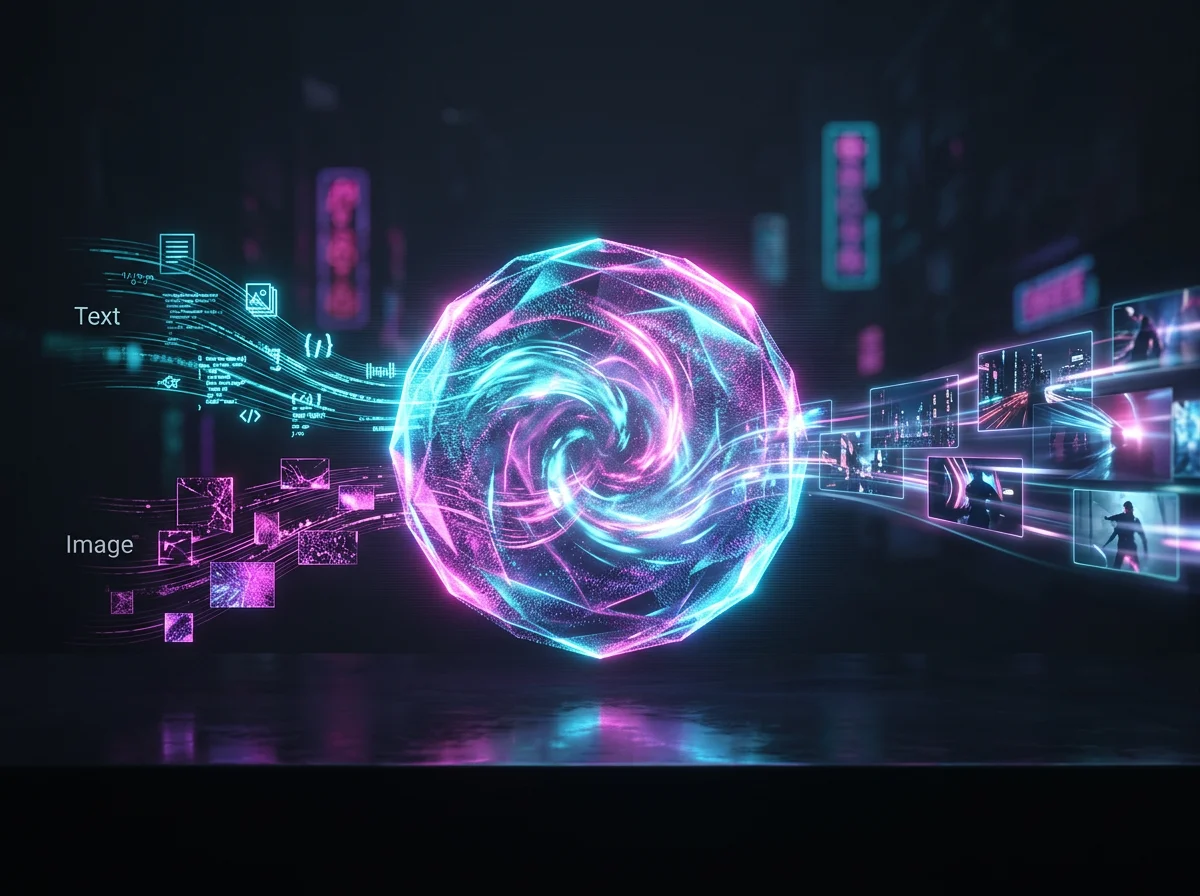
Punchy vertical short, neon-lit street at night, handheld energy, quick parallax on foreground signs, reflective wet pavement, upbeat motion, 9:16
How to Write Flux Video Prompts
Prompt quality is the biggest lever on output. Use this structure - subject, action, camera, style, mood - to get a stronger first clip from either input.
Name the subject and the action first
Start with who or what is in the scene, then state the core motion in direct language. Specific instructions such as "a matte black watch rotating slowly" are easier to evaluate than a vague tag list.
Add camera movement and framing
Add simple cinematic direction - close-up, wide shot, slow zoom, pan left, orbit, tracking shot, or handheld feel. Camera language is how a static idea becomes motion you can publish.
Define style, lighting, and mood
Mention the visual style, time of day, colour palette, realism level, and atmosphere. The more the model knows about the look, the fewer retries you spend.
Keep image-to-video prompts focused on motion
When you already have a reference frame, spend the prompt budget on movement, timing, and camera behaviour instead of re-describing the image. Image-to-video preserves the frame and animates from it.
A Flux Video Workflow That Repeats
Four steps that turn a vague idea into a clip you can ship - the same loop whether you start from a prompt or a frame.


Write the prompt that matches what you want
1. Start With Intent
Describe the subject, action, camera move, style, and mood. Specificity is what pays: a sharper prompt produces a more usable first generation, from either input.
Aspect ratio, camera direction, pacing
2. Tune Motion & Format
Pick a landscape, square, or vertical aspect ratio for the platform you care about, then guide the motion with simple camera language - slow zoom, pan, orbit, or handheld - so the scene moves the way you intend.
Lock composition, then add motion
3. Anchor With an Image
When text-only prompting drifts, choose an image-capable model and supply a reference frame through the controls its form exposes. Use the prompt for movement, timing, and camera behaviour.
Treat your prompts as playbooks
4. Save What Worked
The prompts that produced your best clips become repeatable templates. Tweak by scene and subject, keep the structure that got you there, and turn one good result into a batch of short-form video.
Simple, Credit-Based Flux Video Pricing
Credits you can spend across text-to-video and image-to-video in the same generator. Start free, then scale into Studio or Pro when generating becomes part of your weekly production loop.
Cancel anytime - unused credits stay until your period ends.
Studio
500 credits/month
Up to 25 starter clips/month
- IncludedText-to-video
- IncludedImage-to-video
- IncludedVisible credit meter
- IncludedGreat for product teasers, short-form ads, and weekly social clips
- IncludedCommercial Usage RightsUse outputs in client work, ads, and products on this plan.
- IncludedDownloadDownload finished files from your library.
- IncludedNo WatermarkExport without a platform watermark.
- IncludedPrivateKeep prompts and outputs off the public gallery.
- Not includedHigher monthly render budget
- Not includedBest for teams iterating on more scenes and campaign variants
Pro
2,000 credits/month
Up to 100 starter clips/month
- IncludedText-to-video
- IncludedImage-to-video
- IncludedVisible credit meter
- IncludedHigher monthly render budget
- IncludedBest for teams iterating on more scenes and campaign variants
- IncludedCommercial Usage RightsUse outputs in client work, ads, and products on this plan.
- IncludedDownloadDownload finished files from your library.
- IncludedNo WatermarkExport without a platform watermark.
- IncludedPrivateKeep prompts and outputs off the public gallery.
Secure checkout. Available payment methods are confirmed before payment.
Flux Video FAQ
The questions people ask before they try it - covering text-to-video, image-to-video, prompts, motion, aspect ratios, credits, and licensing.
Start Generating With Flux Video
Open the Flux Video generator, choose a currently available model, add only the inputs its form accepts, and review the credit estimate before submitting.

Explore a still before creating motion
Use this page to settle a visual direction before creating motion in Flux Video. Sunburst and Flare make stills, which you can download for your next production step.